This tutorial will walk you through the process of installing and activating PipTarget Copier on your desktop.
Step 1: Look for Activation and Setup Instructions in Your Email
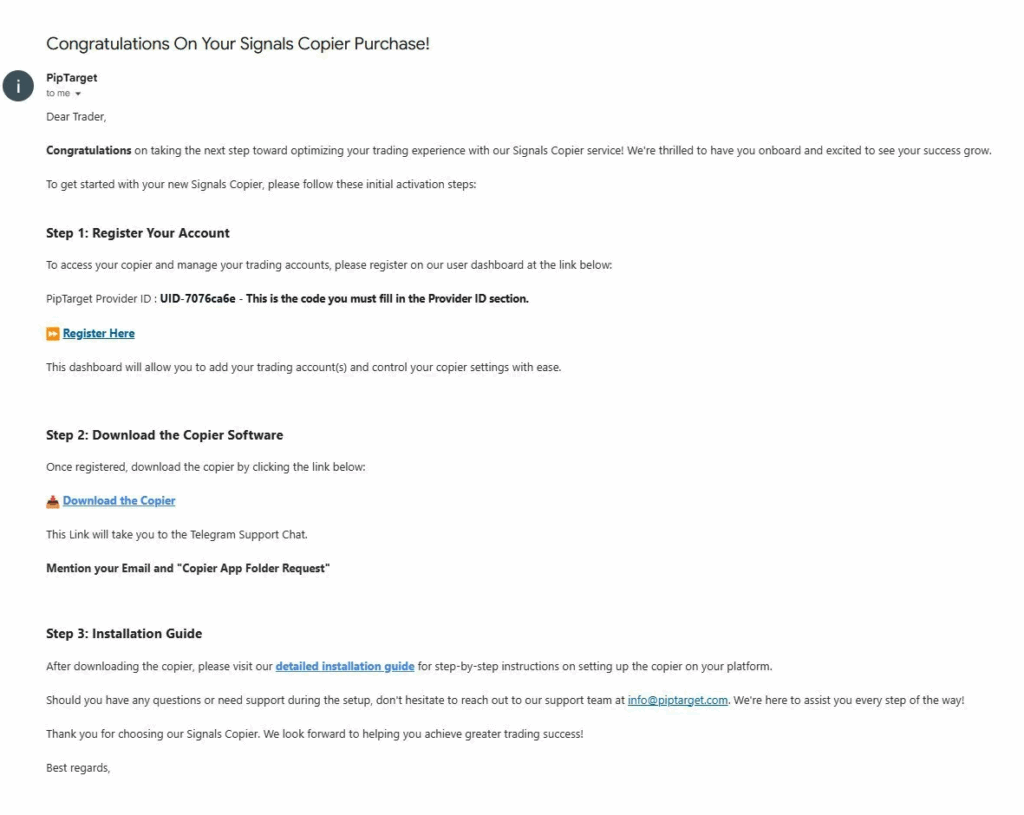
After subscribing, you’ll receive a confirmation email with an activation link and important setup instructions that must be followed. Be sure to check your spam or junk folders if you don’t see the email in your inbox.
Step 2: Configure MetaTrader for the Copier
After following the instructions in the activation email, the copier should download to your computer, and your account should be configured in the user dashboard.
Now, set up MetaTrader by following these steps:
Open your MetaTrader terminal.
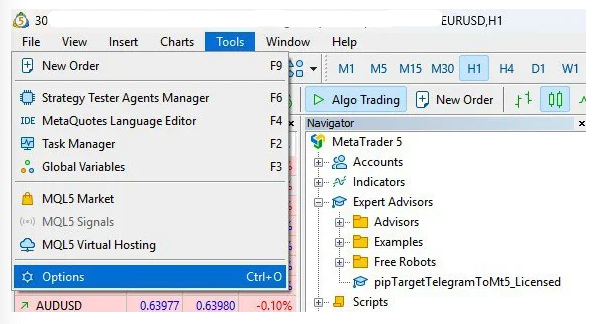
Go to the Tools menu and select Options.
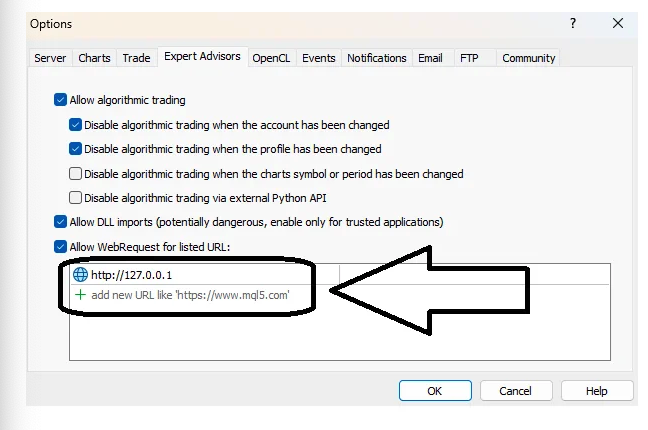
In the Options window, go to the Expert Advisors tab and make sure all the boxes are checked as shown in the image below.
Under the Allowed URLs, add the following address: http://127.0.0.1
Step 3: Add Your Trading Account
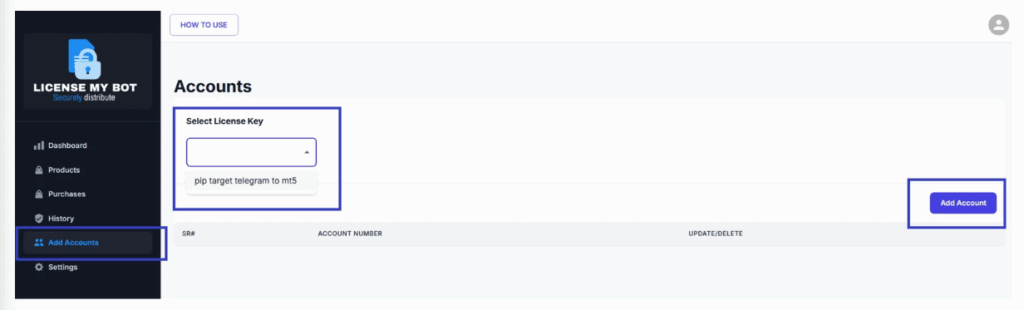
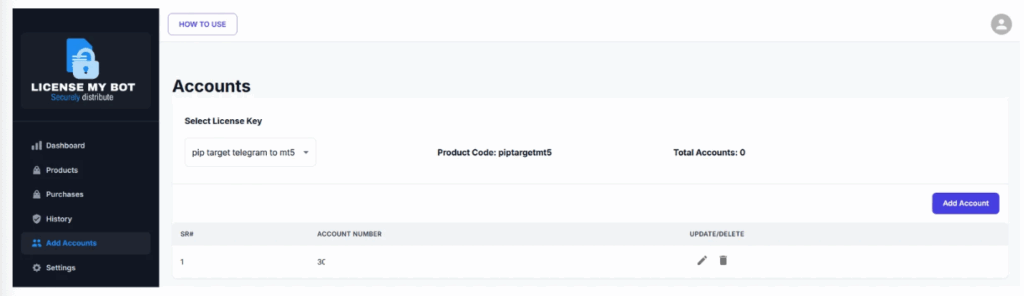
Go to your user dashboard and navigate to the Add Account section.
Under Select License Key, choose the product you purchased.
Click on Add Account.
Enter your trading account ID (you can find this in the top left corner of your MetaTrader terminal) and click Save.
Step 4: Download the Licensed Version
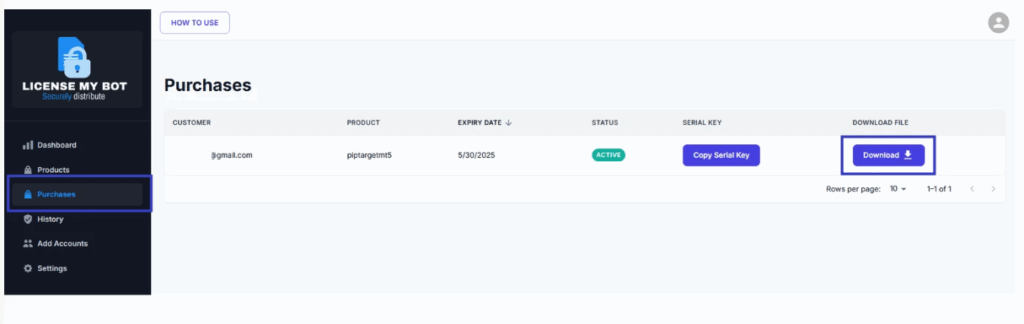
In your user dashboard, where you registered your account, navigate to the Purchases section and download the necessary license for your copier.
Step 5: Activate the Licensed Version
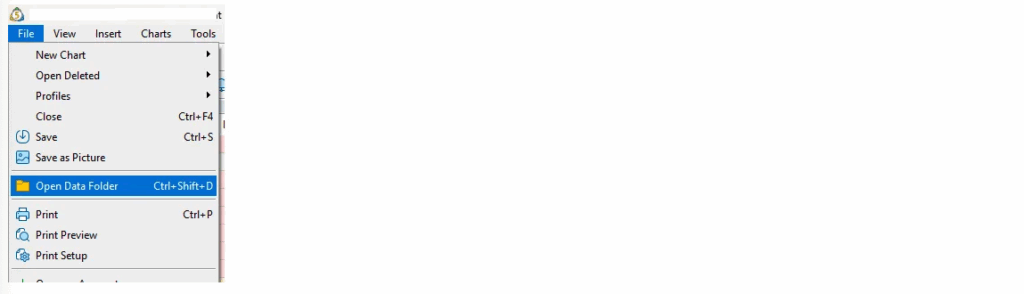
Open your MetaTrader terminal and go to File -> Open Data Folder.
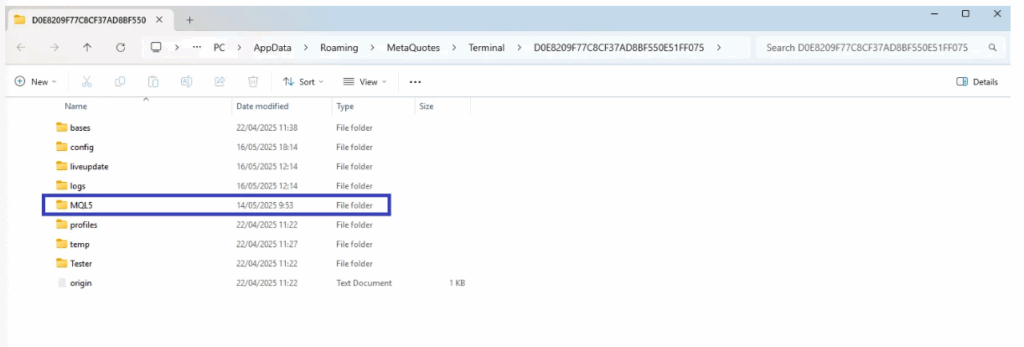
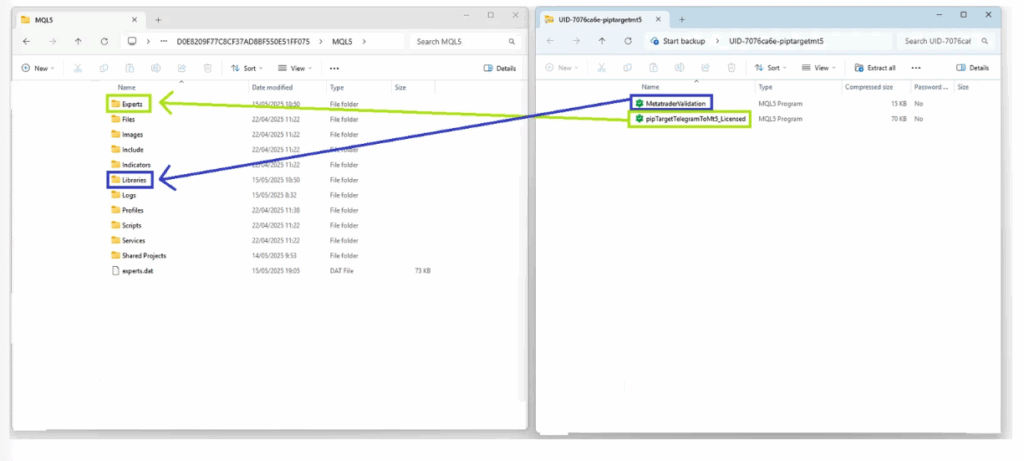
In the Data Folder, navigate to the MQL folder (either MQL4 or MQL5, depending on your MetaTrader version).
Inside the MQL folder:
Drop the ‘pipTargetTelegramToMt5_Licensed’ file into the Experts folder.
Drop the ‘MetatraderValidation’ file into the Libraries folder.
Step 6: Connect the Copier to Telegram
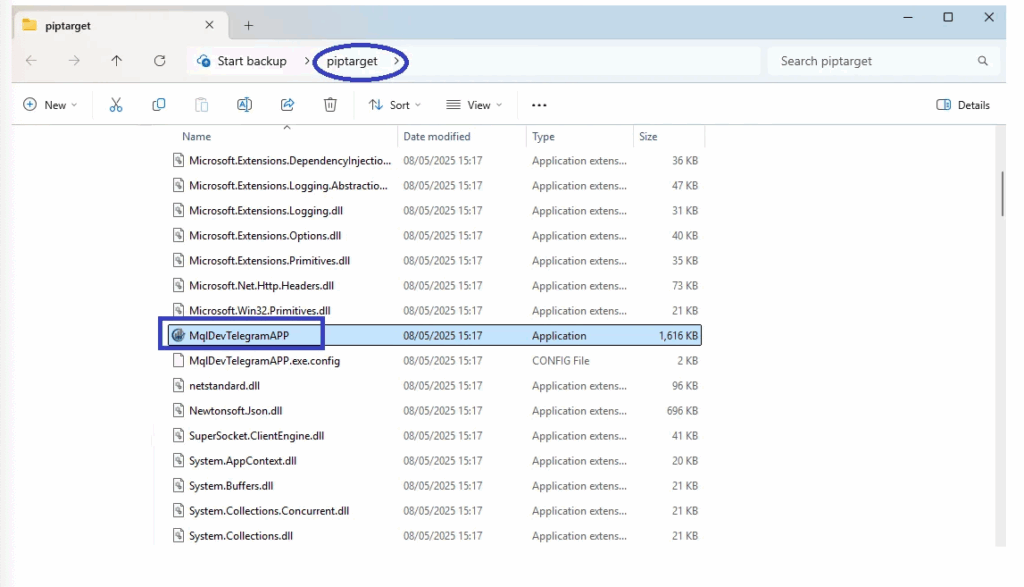
Extract the copier file you downloaded from Telegram, then open the extracted folder.
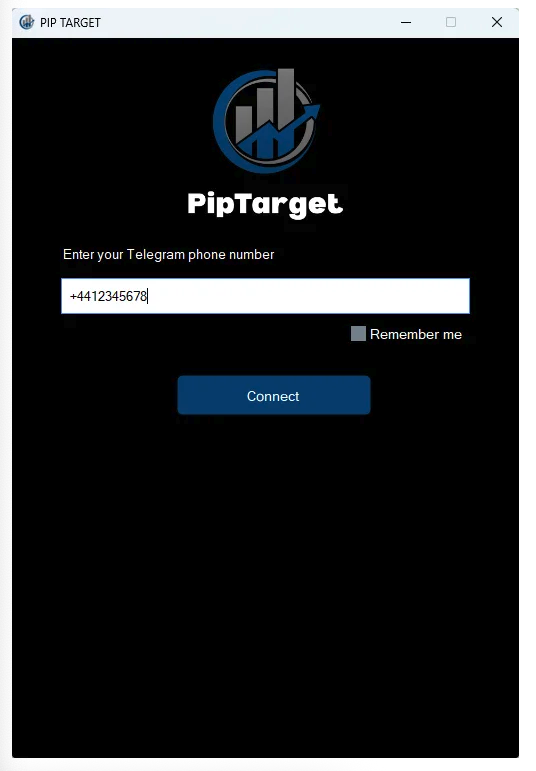
Navigate to the piptarget folder, then open the folder, and run the MqlDevTelegramAPP file.
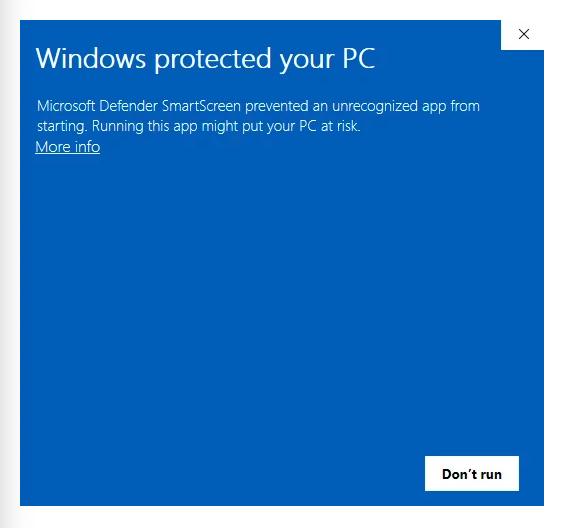
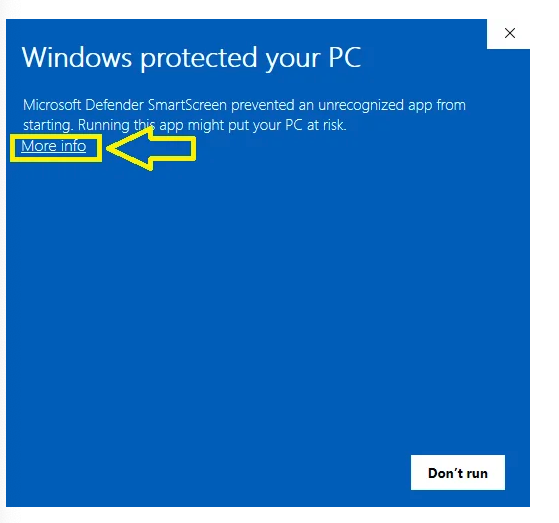
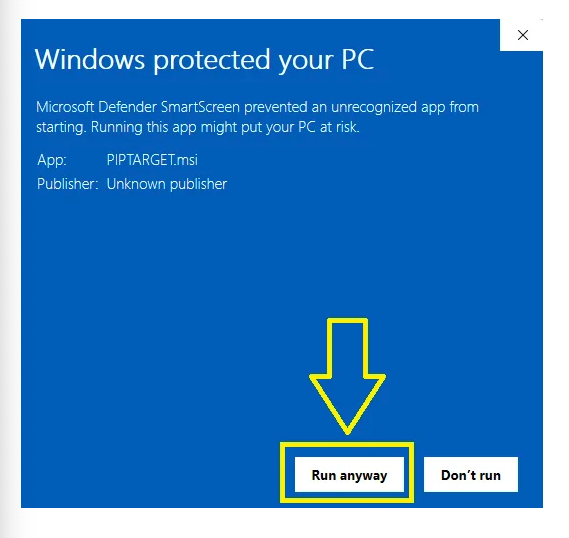
Important Note: Depending on your operating system, you may need to bypass security warnings by clicking “More Info” and selecting “Run Anyway”, and/or choose to “Allow Access” when prompted.
Additionally, please ensure that the Copier application is allowed through your system’s firewall to enable proper functionality and connection.
Enter your phone number and click Connect.
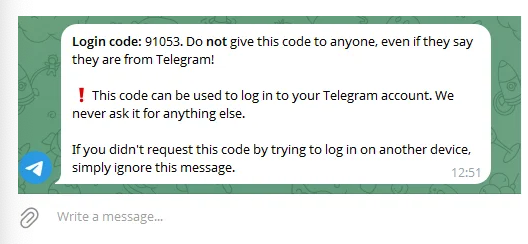
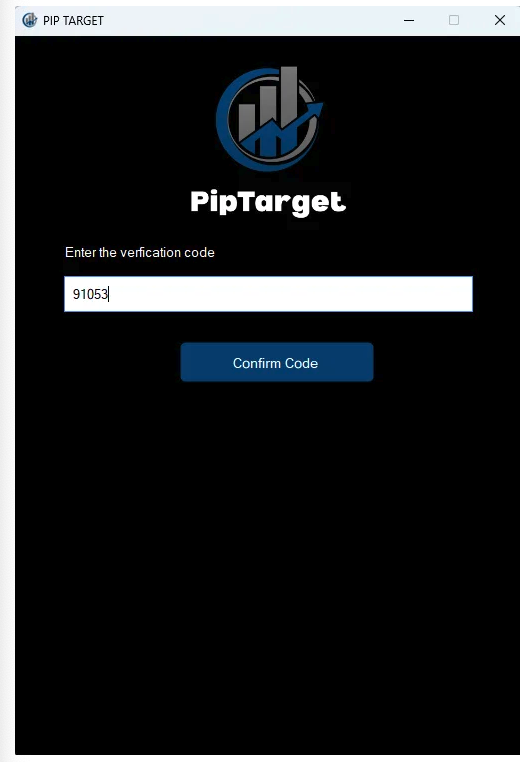
You will receive a code via Telegram. Enter the code in the prompt and click Confirm Code.
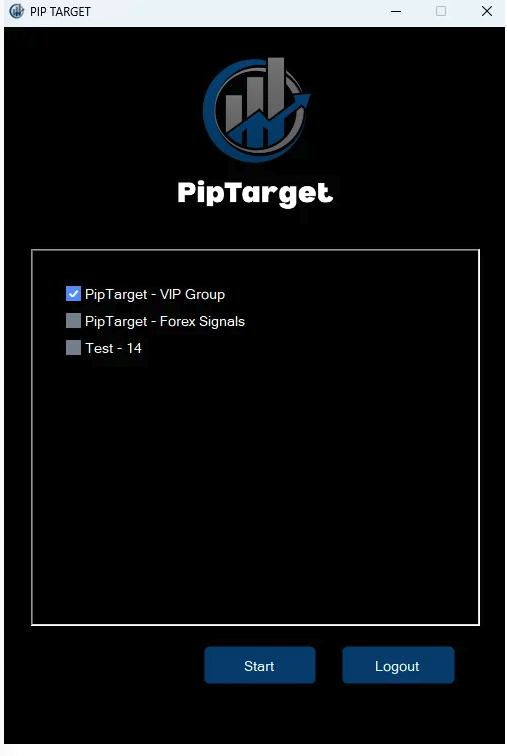
Choose the PipTarget – VIP Group channel and click Start.
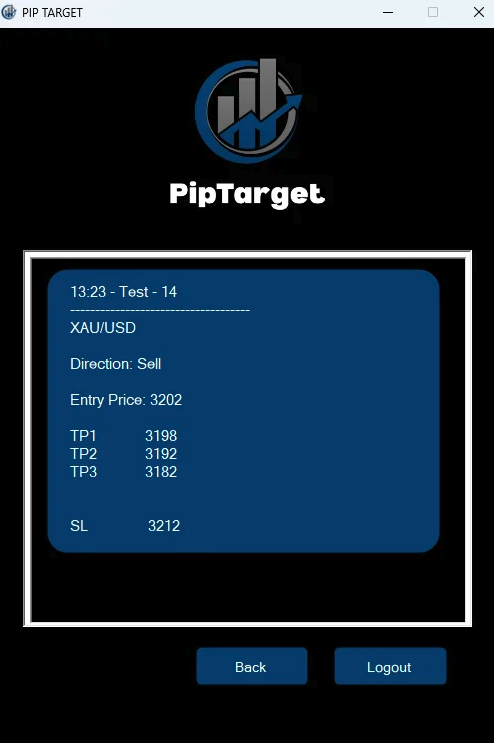
You are now prepared to receive the signals after selecting Start!
Step 7: Final Step – Activate Your Serial Key
With the connection established, the last step is to activate your serial key for the final setup.
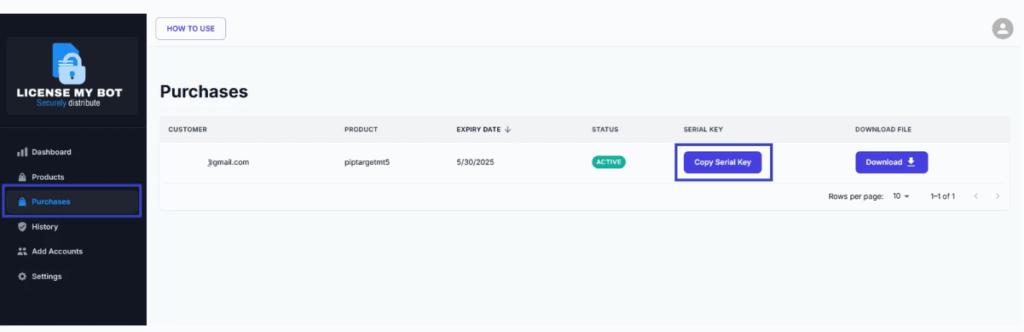
Go to your user area online and navigate to the Purchases section.
Click on Copy Serial Key.
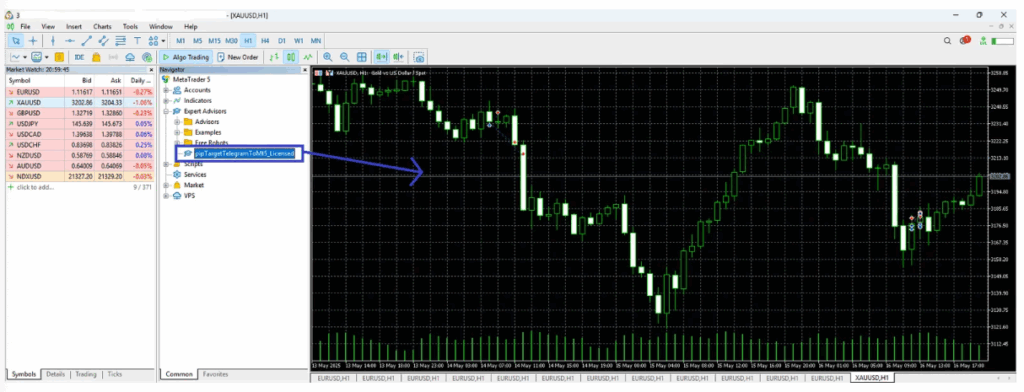
Return to your MetaTrader terminal and drag the pipTargetTelegramToMt5_Licensed file onto one chart.
Important Note: This step only needs to be done once and only on a single chart. The Copier will automatically apply to all charts and instruments. Dragging the file onto multiple charts may result in duplicate trades, as the EA will execute multiple positions per signal.
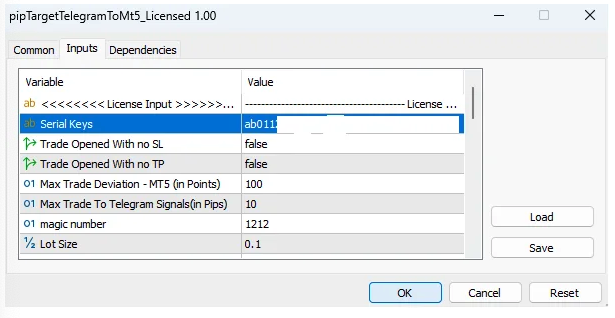
Paste your serial key into the appropriate field.
Adjust the parameters based on your trading strategy (for help, refer to the parameters page), and click OK.
You’re All Set!
After completing the configuration, you’re ready to start receiving your favorite trading signals automatically!
Just remember that thefollowing must be running at all times to ensure smooth and uninterrupted signal reception:
Your MetaTrader platform (MT4 or MT5)
The PipTarget Copier App
The Telegram Desktop application
If any of these are closed or disconnected, signal delivery and trade execution may be affected.
Note: If you prefer not to leave your computer running continuously, or if you’re using a laptop, macOS, or Linux, you can solve this by using a WindowsVPS (Virtual Private Server running on Windows Systems). A VPS will keep your setup online 24/7, ensuring you never miss a signal, even when your computer is off. Make sure to leave us a message if you need any further assistance.